
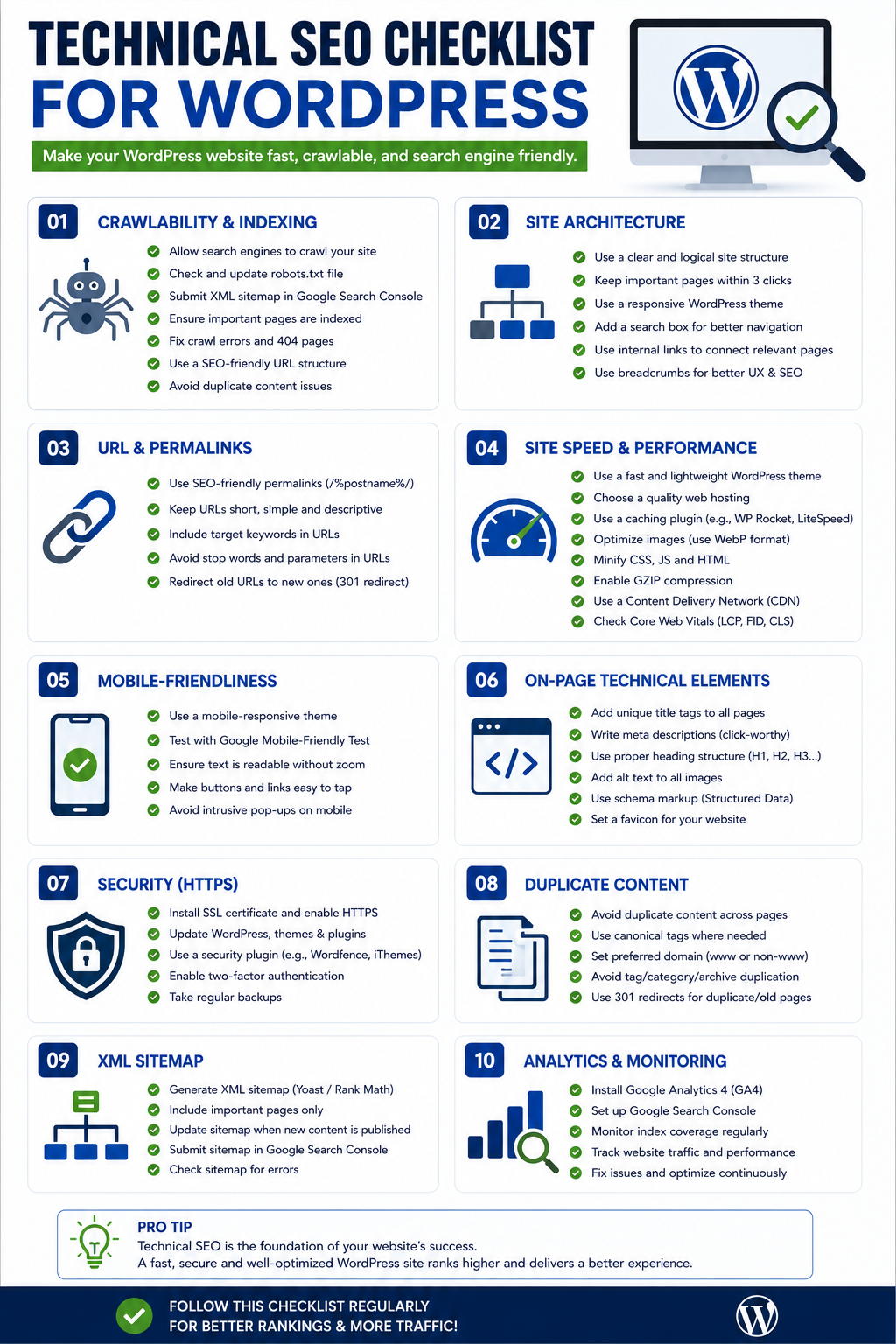
Most WordPress SEO problems aren’t about content they’re about the plumbing underneath it. A slow theme, a misconfigured robots.txt file, or a hero video that tanks your Largest Contentful Paint (LCP) score can quietly cap your rankings no matter how good your writing is.
This checklist covers all 25 fixes we run on every WordPress site we audit, grouped into four areas: crawling, speed, schema, and security. We’ve also included real before/after results from fixes we performed on this site, mdobindustry.online, so you can see what “fixed” actually looks like.
Why Technical SEO Comes Before Content
It’s tempting to treat technical SEO as an afterthought — something to clean up once the “real” content work is done. In practice, it’s the opposite. Google can’t rank a page it can’t crawl, can’t render a page that times out, and won’t trust a site with security warnings or broken redirects. Technical fixes are also some of the highest-leverage changes you can make, because a single caching plugin or sitemap fix touches every page on the site at once, rather than improving one article at a time.
Every fix below runs on a standard WordPress install using a free or low-cost plugin, and most take under 30 minutes to implement. Work through the four groups in order crawling, speed, schema, security — and you’ll cover the full technical foundation that content and link-building efforts depend on.
Crawling & Indexing (7 Fixes)
1. Missing or broken XML sitemap
Problem: Google can’t efficiently find and prioritize your pages without a sitemap, especially on larger sites. Fix: Generate an XML sitemap automatically and submit it in Google Search Console under Sitemaps. Tool: Yoast SEO or Rank Math (both auto-generate /sitemap_index.xml).
2. Robots.txt blocking important pages
Problem: A leftover Disallow: / from a staging site, or blocked CSS/JS folders, can prevent Google from rendering pages properly. Fix: Review yoursite.com/robots.txt and make sure only genuinely private areas (like /wp-admin/) are disallowed. Tool: Yoast SEO’s robots.txt editor, or edit the file directly via an SFTP client.
3. Pages accidentally set to “noindex”
Problem: The WordPress “Discourage search engines from indexing this site” checkbox, or a per-page noindex tag, can silently deindex content. Fix: Check Settings → Reading, and audit individual page/post SEO settings for stray noindex tags. Tool: Search Console’s URL Inspection tool to confirm indexing status.
4. Broken internal links and 404s
Problem: Dead links waste crawl budget and hurt user experience. Fix: Scan the site, fix or redirect broken URLs, and update internal links to point to live pages. Tool: Broken Link Checker plugin or a Screaming Frog crawl.
5. Redirect chains and loops
Problem: Multiple hops (A → B → C) slow down crawling and dilute link equity. Fix: Point redirects directly to the final destination URL in one hop. Tool: Redirection plugin, with its built-in redirect log to spot chains.
6. Duplicate content without canonical tags
Problem: Filtered category pages, tag archives, and print versions can create duplicate content that splits ranking signals. Fix: Set self-referencing canonical tags site-wide and canonicalize duplicates to the primary URL. Tool: Yoast SEO or Rank Math (both handle canonicals automatically, with manual overrides available).
7. Unmonitored Search Console coverage errors
Problem: Crawl errors, soft 404s, and indexing drops often go unnoticed until traffic has already dropped. Fix: Check the Coverage and Pages reports monthly and address new errors promptly. Tool: Google Search Console (free, and non-negotiable for any WordPress site).
Speed & Core Web Vitals (7 Fixes)
Core Web Vitals LCP (loading speed), INP (responsiveness), and CLS (visual stability) are ranking factors and, more importantly, they directly affect whether visitors stay or bounce.
8. No caching layer
Problem: WordPress rebuilds pages dynamically on every visit by default, adding unnecessary server load time. Fix: Enable page caching so repeat visitors get a static, pre-built version of the page. Tool: WP Rocket (paid) or LiteSpeed Cache / W3 Total Cache (free, if your host supports it).
9. Unoptimized, uncompressed images
Problem: Large PNG/JPEG uploads are one of the most common causes of slow load times on WordPress. Fix: Compress images on upload and convert to modern formats like WebP or AVIF. Tool: ShortPixel or Imagify, both of which run automatically in the background.
10. Slow Largest Contentful Paint (LCP)
Problem: The largest visible element (usually a hero image or video) loads too slowly, pulling down your LCP score. Fix: Preload the hero asset, compress it, and avoid lazy-loading anything above the fold. Tool: WP Rocket’s preload feature, plus manual <link rel=”preload”> tags for critical assets.
11. Poor Interaction to Next Paint (INP)
Problem: Heavy JavaScript from page builders, sliders, and third-party scripts delays how quickly the page responds to clicks and taps. Fix: Defer non-critical JavaScript and remove unused scripts and plugins. Tool: Perfmatters or WP Rocket’s JS delay/defer settings.
12. Layout shift (CLS) from unsized images and ads
Problem: Images, embeds, or ads without defined dimensions cause content to jump around as the page loads. Fix: Set explicit width and height attributes on all images and reserve space for ad slots. Tool: Most modern themes handle this automatically; verify with PageSpeed Insights’ CLS diagnostics.
13. No CDN for global visitors
Problem: Server distance adds latency for visitors outside your hosting region. Fix: Serve static assets from edge servers closer to the visitor. Tool: Cloudflare (free tier is sufficient for most small business sites).
14. Bloated database
Problem: Years of post revisions, spam comments, and transients slow down every database query. Fix: Clean up revisions, spam, and expired transients on a regular schedule. <br>Tool: WP-Optimize or Advanced Database Cleaner.
Schema & Structured Data (5 Fixes)
Schema doesn’t directly boost rankings, but it helps Google understand and richly display your content often the difference between a plain blue link and a rich result with stars, FAQs, or breadcrumbs.
15. No schema markup at all
Problem: Without structured data, Google has to guess at your content type and can’t generate rich results. Fix: Install a schema plugin that adds JSON-LD markup automatically. Tool: Rank Math (has the most generous free schema library) or Schema Pro.
16. Missing Organization/LocalBusiness schema
Problem: Without this, Google may not correctly associate your business name, logo, and contact details with your site. Fix: Add Organization or LocalBusiness schema with your name, logo, address, and social profiles. Tool: Rank Math’s Knowledge Graph settings, or Yoast’s Organization schema fields.
17. Missing Article/BlogPosting schema
Problem: Blog posts without Article schema miss out on author, publish date, and image rich-result eligibility. Fix: Apply Article schema automatically to all blog posts. Tool: Yoast SEO or Rank Math (auto-applied by default on posts).
18. FAQ content without FAQ schema
Problem: FAQ sections that aren’t marked up don’t qualify for expandable FAQ rich results. Fix: Wrap FAQ content in FAQPage schema. Tool: Rank Math’s FAQ block, or the Yoast FAQ block in the block editor.
19. No breadcrumb schema
Problem: Without breadcrumb markup, Google can’t display the page hierarchy in search results. Fix: Enable breadcrumbs sitewide with structured data attached. Tool: Yoast SEO or Rank Math breadcrumb feature (both include schema by default).
Security & Trust (6 Fixes)
Security issues don’t just risk a hacked site malware warnings and mixed-content errors directly damage rankings and user trust.
20. No HTTPS, or partial HTTPS
Problem: Google flags non-secure sites, and mixed HTTP/HTTPS content triggers browser warnings. Fix: Install an SSL certificate and force HTTPS across the entire site. Tool: Let’s Encrypt (usually free through your host) plus Really Simple SSL to handle the WordPress-side migration.
21. No firewall or malware protection
Problem: Unprotected WordPress sites are a common target for brute-force attacks and malware injection. Fix: Add a web application firewall and malware scanner. Tool: Wordfence or Sucuri.
22. No backup system
Problem: Without backups, a hack, bad update, or hosting failure can mean permanent data loss. Fix: Schedule automatic daily backups stored off-server. Tool: UpdraftPlus, with backups sent to Google Drive or Dropbox.
23. Weak login security
Problem: Default /wp-admin login pages and weak passwords are the top entry point for attacks. Fix: Add two-factor authentication and limit login attempts. Tool: WP 2FA or Wordfence’s login security features.
24. Outdated core, themes, and plugins
Problem: Outdated software is the single largest source of WordPress security vulnerabilities. Fix: Enable auto-updates for minor releases and review major updates monthly. Tool: Built-in WordPress auto-update settings, supplemented by a staging site for testing major updates.
25. Mixed content warnings after HTTPS migration
Problem: Old image, script, or link references pointing to http:// versions break the padlock icon even after SSL is installed. Fix: Run a site-wide search-and-replace to update all internal references to HTTPS. Tool: Better Search Replace plugin, or the Really Simple SSL mixed-content fixer.
Priority Order: What to Fix First
If you can only tackle a few of these this month, work in this order:
- HTTPS and security basics (#20–24) foundational trust signals, quick to implement.
- Caching and image compression (#8, #9) the fastest speed wins for the least effort.
- XML sitemap and robots.txt (#1, #2) makes sure Google can even find your fixes.
- LCP fix on your homepage hero (#10) usually the single biggest Core Web Vitals win.
- Schema markup (#15–19) lower urgency, but compounds over time as rich results accumulate.
For a deeper breakdown of how to sequence a full audit, see our related guide on structuring an SEO audit.
It’s worth noting that these five steps alone typically resolve 80% of the technical issues we find on small business WordPress sites during an audit. The remaining items redirect chains, database bloat, breadcrumb schema matter, but they’re refinements rather than emergencies fixes onto hundreds of indexed pages later.
Case Study: The Hero-Video LCP Fix on This Site
We don’t just recommend these fixes we run them on mdobindustry.online. The clearest example: our homepage originally used an autoplaying hero video as the primary visual, which was also the page’s Largest Contentful Paint element.
The problem: The video file loaded before any meaningful content was visible, pushing LCP to over 4 seconds on mobile solidly in Google’s “poor” range.
What we changed:
- Replaced the eagerly-loaded video with a compressed poster image as the true LCP element, with the video loading in afterward.
- Preloaded the poster image using <link rel=”preload”>.
- Deferred the video script so it no longer competed with the initial render.
- Compressed the poster image with ShortPixel and served it as WebP.
The result: LCP dropped from the “poor” range into the “good” range (under 2.5 seconds) on both mobile and desktop PageSpeed Insights tests, without removing the video from the page at all.
(Before/after PageSpeed Insights screenshots)
This is the kind of fix that doesn’t show up in generic checklists it takes actually looking at your own PageSpeed report and finding the one element holding your score back. It’s also a good reminder that Core Web Vitals fixes are rarely about removing features visitors like (in this case, the video); they’re about changing the order in which the browser loads things, so the page feels fast without sacrificing the experience.
FAQs
What’s the best SEO plugin for WordPress? Yoast SEO and Rank Math are the two leading options, and both cover sitemaps, meta tags, canonicals, and schema. Rank Math’s free tier includes more schema types out of the box; Yoast has a longer track record and a larger support ecosystem. Either is a solid foundation the plugin matters less than actually configuring it correctly.
What’s a good LCP score? Google considers an LCP under 2.5 seconds “good,” 2.5–4 seconds “needs improvement,” and anything above 4 seconds “poor.” Check your real score in Google Search Console’s Core Web Vitals report or PageSpeed Insights, since lab tests and real-world field data can differ.
Do I need a developer to fix these issues? Most of this checklist caching, image compression, sitemaps, schema plugins, SSL can be done by a site owner with no coding experience, using the plugins listed above. A developer becomes useful for custom fixes like the hero-video LCP adjustment, theme-level code changes, or resolving conflicts between plugins.
Want These Fixes Done for You?
Running through 25 items manually takes time, and a few of these (like diagnosing your specific LCP bottleneck) benefit from an expert eye. We run this exact checklist as part of our technical SEO audit service we’ll identify which of these 25 issues apply to your site, fix them, and show you the before/after data, just like the case study above.